EFI Analytics MegaLogViewer MegaSquirt EFI Forum Index
Quick Links:     VE Table Tuning Instructions     Change Log     Download JRE     FAQ    Download

Buy MegaLogViewer Now!

What is MegaLogViewer
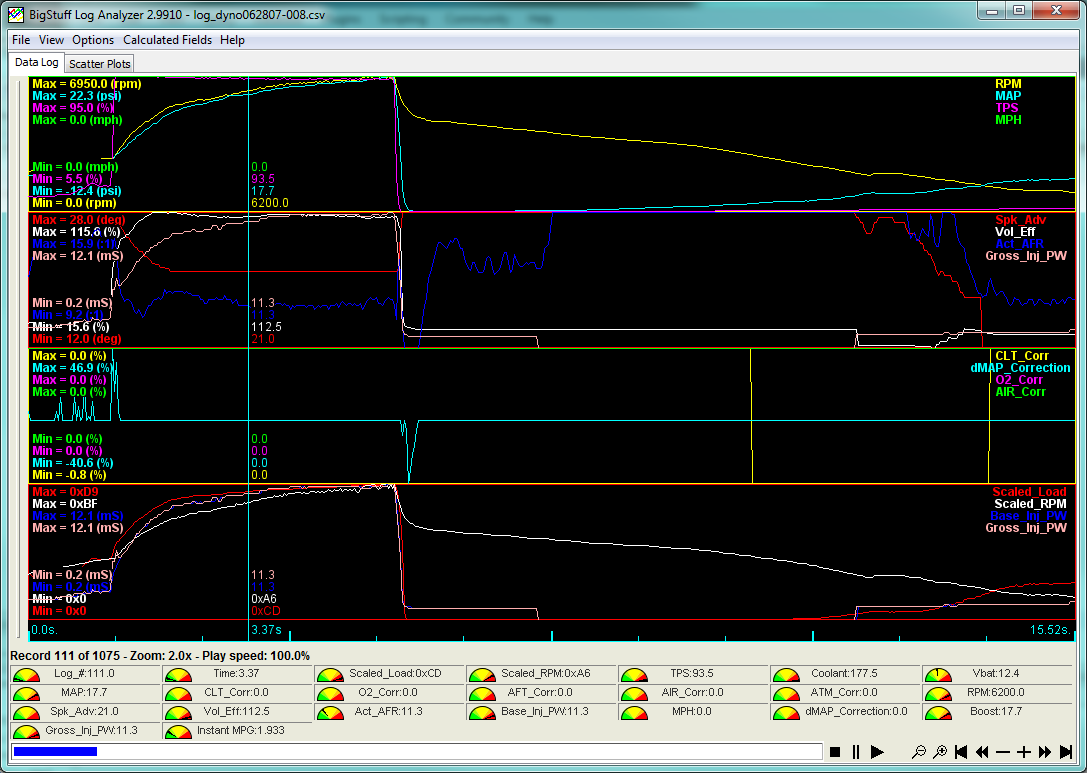
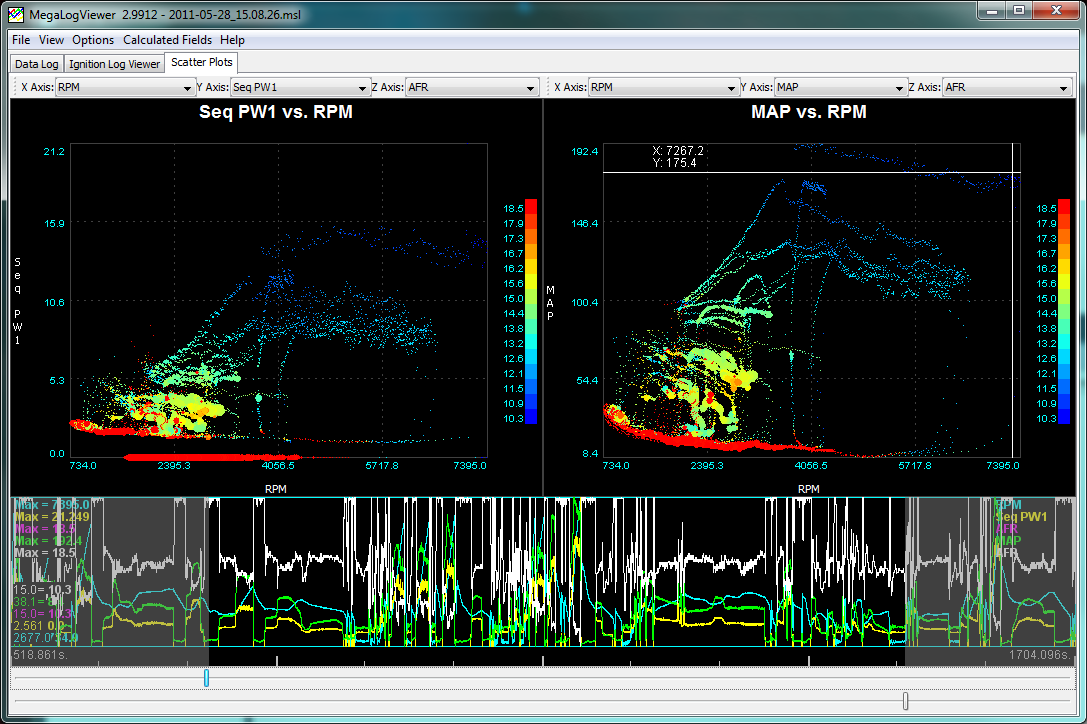
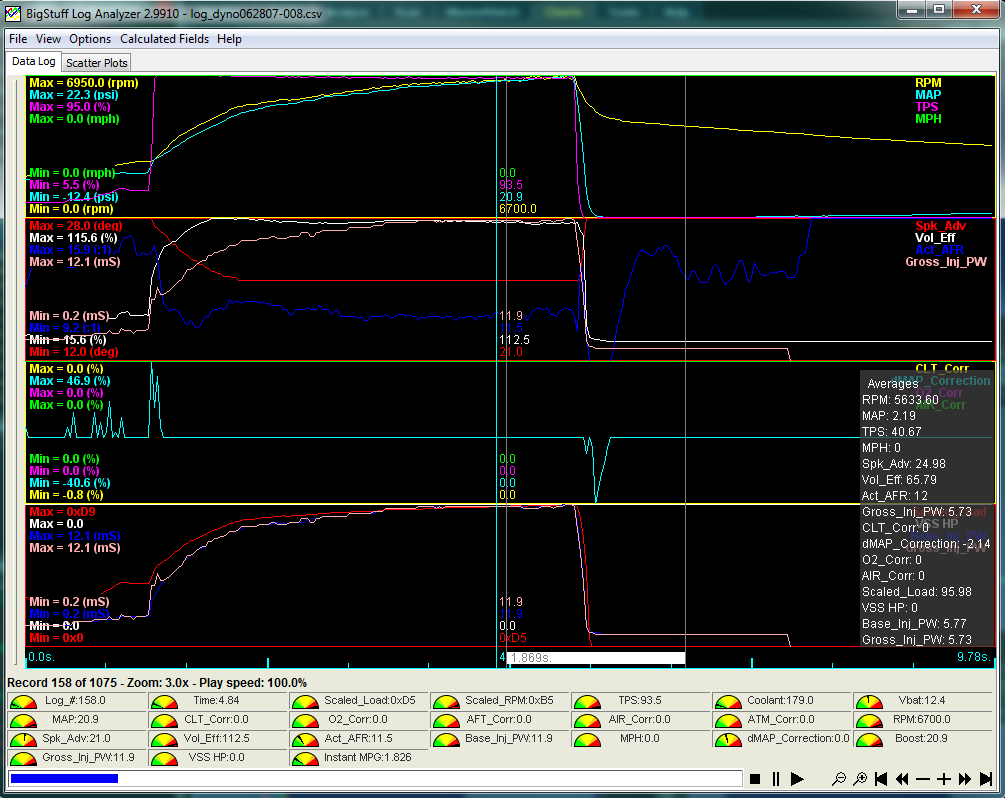
MegaLogViewer is an application to view and graph all Megasquirt Log files. Or any delimited file for that matter. It will graph any field in your MegaSquirt(I, II, MSnS-Extra...) log file captured by MegaTune, MegaTunix or Palm based MS-Logger. MegaLogViewer allows you to add any fields to your log files, they will automatically be detected and available for view and display, no MegalogViewer configuration changes needed.
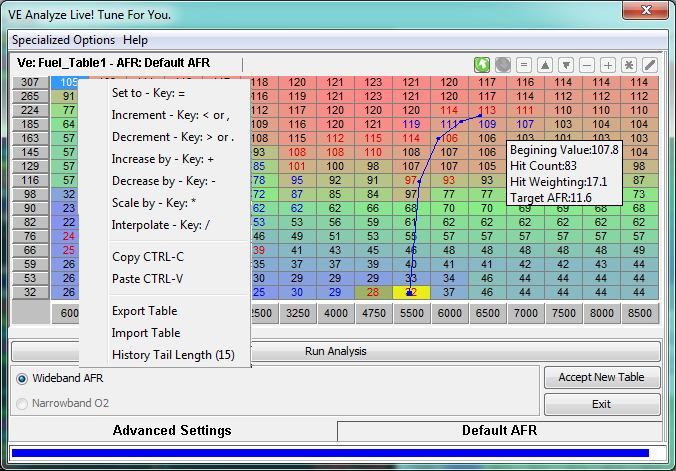
MegaLogViewer is user friendly application, you will find it to be very stable and work as you expect with a refined feel. Now taking MegaLogViewer to the next level version 2.2 has added log file based VE table correction. VE Analysis is built on a flexible Engine that performs multiple calculations on each log record that passes filtering criteria. No special configuration changes are needed to achieve accurate results.
Written in Java to support all OS's and platforms.
Supports: Current Version 2.80 see change log here for what is new to 2.75

Screenshot:


System Requirements - What you need
Hardware - Pentium 100 MHz, 32 Meg RAM. Tests well on P120 w/40Meg and win98.
Recommend 128+ Meg RAM, 300+ MHz Processor.

Software - First get MegaLogViewer Download Here
Run Windows Installer (msi file), or Untar it to the directory of your choice.
The Directory must contain at a minimum MegaLogViewer.jar and MSGraph.properties

Required a Java runtime environment (JRE), JRE 1.4 is required with version 2.80+, 1.5 or newer recommended.
You probably already have one installed, but if you need a Java runtime it can be found at:
http://www.java.com/en/download/manual.jsp


To Run
Now with windows installer you just need to have the JRE installed. For other platforms or if you have trouble, follow these instructions to start app.
Double click MegaLogViewer.jar
or
from command shell from the directory containing MegaLogViewer.jar:
On Windows:
javaw -jar MegaLogViewer.jar

On Other platforms:
java -jar MegaLogViewer.jar


Using
There are buttons to navigate through your log file.
However, For faster navigation the following keys are mapped:
Right Arrow - Advance 1 Record
Left Arrow - Back 1 Record
Page UP - Advance a graph page worth of records
Page Down - Decrease a graph page of records
Home - Jump to 1st Record
End - Jump to last Record
Up Arrow - Rescale graph, Zoom in
Down Arrow - Rescale graph, Zoom out
P - Play
S - Stop playback
+ - speed playback
- - slow playback

If things don't look right
Check out Configure. MSGraph can manipulate the data for any field.
MSGraph.properties should be in the same directory as MegaLogViewer.jar
if that doesn't do it Post to http://www.msefi.com/viewforum.php?f=25

Advanced Configuration

Most functions used are available from the drop down menu's. However, if you want to create your own custom fields MSGraph.properties can be edited in any text editor. i.e. notepad or vi
Any Math functions can be added in free text, they will be interpreted at runtime.
For more information on the Math parsers capabilities go here.
This file allows you to alter any field by formula
Commented lines in properties files begin with a #

Max number of Graphs By default you can have up to 5 graphs. If you would like more
Edit:
numberOfGraphs=5
in the MSGraph.properties file to what ever value suites you.
The same applies to:
numberOfOverlayGraphs=2
numberOfOverlays=3

Please note that the MSGraph.properties file will be part of a upgrade and may overwrite your changes. Save them else where if you wish to re-apply them.
The user.properties file will not be over written by an upgrade.

Field Groups

Formula Groups will create checkbox selectable menu to append one of many formula options

Example: (from MSGraph.properties)
~~~~~~~~~~~snippet~~~~~~~~~~~~~~
FORMULA_GROUP_AFR(WBO2)=Wideband\ O2-AFR
AFR(WBO2)_OPTIONS=Off;Innovate\ 0-5;Innovate\ 0-2;TechEdge-DIY;AME;
AFR(WBO2)_SOLUTIONS=\ ;[O2]*2+10;[O2]*5+10;[O2|TechEdge-DIYwbo2.inc];[O2|aemWBo2.inc];
~~~~~~~~~~~end snippet~~~~~~~~~~~~

to visualize this better compare these 3 lines to the "Wideband O2-AFR" selections under "Calculated Fields" while running the app.
These 3 lines create the avalailable selections for Wideband O2.
FORMULA_GROUP_ used as prefix to define any formula set where
only one should be selected at a time. The section between the prefix and = will be the display name.
In this case the Menu Name is "AFR(WBO2)", to add a space to a name, you must use "\ "

_Options list the display names shown on the sub menu
Separate each display name with a semicolon ";"
_SOLUTIONS contains the formula and/or mapping file to apply, separating each option formula with a ;
for file mapping give inc file and field separated by |

[O2]*2+10 will be interpreted as AFR(WBO2)=(O2 field value) x 2 + 10
This formula will be applied if the "Innovate 0-5" option is selected.

[O2|TechEdge-DIYwbo2.inc] is interpreted as AFR(WBO2)=(O2 Field Value) lookup in TechEdge-DIYwbo2.inc file.
The closest 2 values in the inc file will be found and interpolated.

Appended Fields

Appended Fields will add a new field calculated from current record fields, past record fields, mapping files and user prompts.
Each defined APPENDED_FIELD will become a Menu Item on the "Optional Fields" Menu. You can then turn them on an off while running the app.
Prefix:APPEND_FIELD_ - any entry starting with this prefix will be identified as an Appended field.
The new field name follows imediately after the prefix.
APPEND_FIELD_VAC(inHg) - defines a new Appended Field named "VAC(inHg)"
After the = comes the formula used to create the field:
~~~~~~~~~~~~~~~~ Snippet ~~~~~~~~~~~~~~~~~~~~~~~~~~
APPEND_FIELD_VAC(inHg)={Engine off MAP pressure in KPA}-[MAP]*0.29536
~~~~~~~~~~~~~~~~ End Snippet ~~~~~~~~~~~~~~~~~~~~~~

{Engine off MAP pressure in KPA} - will prompt the user for a numeric value to replace this when they activate this field.
[MAP] - will use the current record MAP value.
The new field value will be calculated as:
VAC(inHg)=(user Input)-(MAP Value)*0.29536


Exmple 2:
~~~~~~~~~~~~~~~~ Snippet ~~~~~~~~~~~~~~~~~~~~~~~~~~
APPEND_FIELD_deltaRPM=[RPM]-[RPM-1]
~~~~~~~~~~~~~~~~ End Snippet ~~~~~~~~~~~~~~~~~~~~~~
interpreted as:
deltaRPM = (Current RPM)-(Last record RPM)

APPENDED Fields are now preffered to remapping. They will show on the menu as switchable.
Appended Fields will add a new field with the calculated value but leave the original field as found
Field re-mapping replaces the original field with the new calculated field.

MSGraph.properties remapping Rules:
Formula remappings are identified by COLUMN_FORMULA=some formula with no spaces
Name mappings are identified by COLUMN_NAME=New Name, spaces are fine.
Formulas are evaluated left to right, no hierarchy.
logVal can be anywhere in the formula, 10*logVal = logVal*10, there must be a logVal though
There shouldn't be a limit to formula length.

Example:
RPM can be different for various versions of Megasquirt.
If your RPM's are recorded divided by 100 (3200 RPM is logged as 32)
you can correct this in the MSGraph.properties file.
This is corrected by default, so if you are seeing very high RPM's you will need to comment out this line.
1) open MSGraph.properties
2) You will see a section like this
~~~~~~~~~~~snippet~~~~~~~~~~~~~~
# Mappings use these to apply formulas to alter data
# remove for raw data. If your log file contains
# actual RPM's comment out with a #

RPM_FORMULA=logVal*100

~~~~~~~~~~end snippet~~~~~~~~~~~~~~~~
3) Comment Lines begin with # and are there for information only
4) RPM_FORMULA=logVal*100 - tells MSGraph to apply this formula to the column named RPM.
5) ^ For RPM, take the logVal, multiply by 100


These formulas can be applied for more complex scenarios also.
i.e. you can turn O2 Volts into AFR on a linear WB controller
such as Innovate, this is already in the file.

Example:

~~~~~~~~~~~~~~~snippet~~~~~~~~~~~~~~~~~~

# Innovate 0-5 WB formula
# Comment out for Volts(default)
O2_NAME=AFR
AFR_FORMULA=logVal*2+10

~~~~~~~~~~end snippet~~~~~~~~~~~~~~~~
First the column name O2 is remapped to AFR
Then the formula must be applied to the new name.

Good Luck!!
Phil Tobin
©2006-2010 EFI Analytics
Phil Tobin, EFI Wizard. Fastest Corvette runs on MegaSquirt EFI EMS. Phil Tobin. Philip Tobin Hoover LT1 10 second Corvette. Now an 8 second street car with MegaSquirt, built by Phil Tobin. Best software available for EFI tuning, compare to Motec, Big Stuff, DFI, FAST, Holley or AEM. Other EFI controllers do no offer software that compares.